Mobile Phone
- Sign In from the menu. The menu is accessible by selecting the “ ” icon in the upper-left portion of your screen. Select “Sign in” from the mobile menu and enter your Michigan Lottery account credentials.
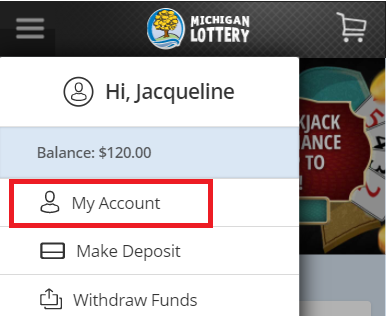
- Select “My Account” from the mobile menu.
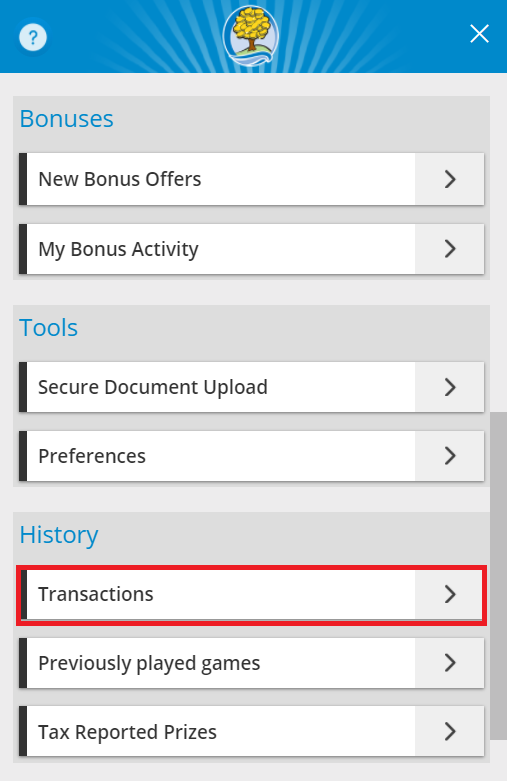
- Select “Transactions”.
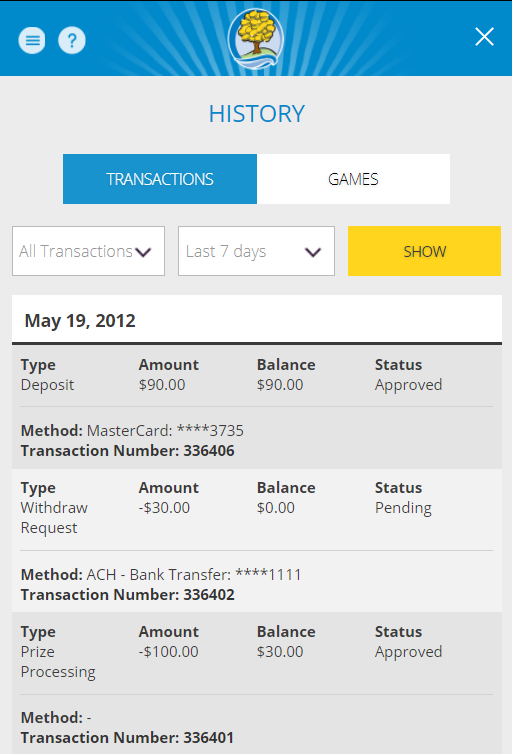
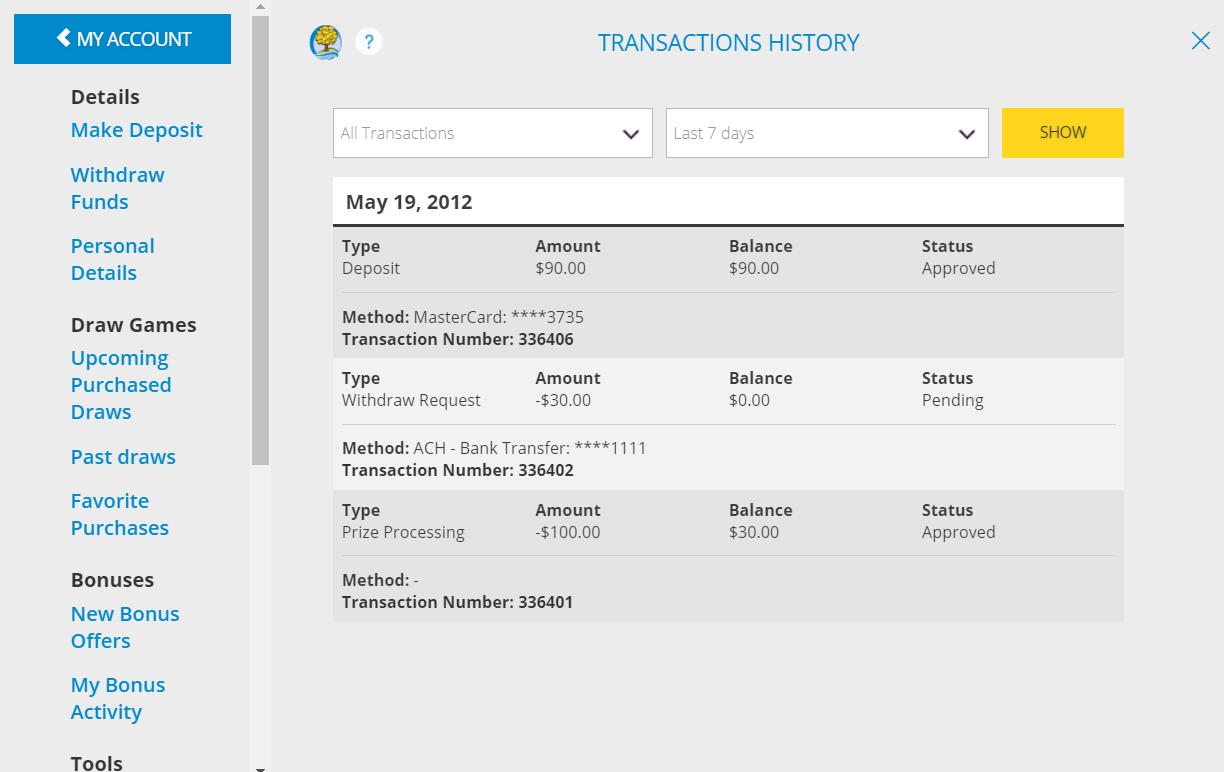
- Use filters to refine results (e.g. “All Transactions”, “Last 7 days”), then select “SHOW”.
Transaction Details Include:
- Type (Deposit, Withdraw, Bonus, Request, Cart Purchases)
- Amount
- Balance
- Status (Approved, Pending, Cancelled)
- Method
Desktop Computer
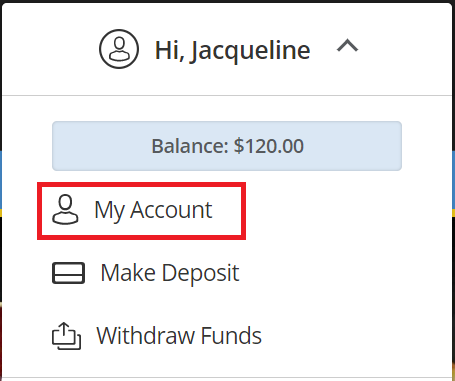
- Sign In and select your name to open the Account Menu.

- Select “My Account” from the menu.
- Select “Transactions”.
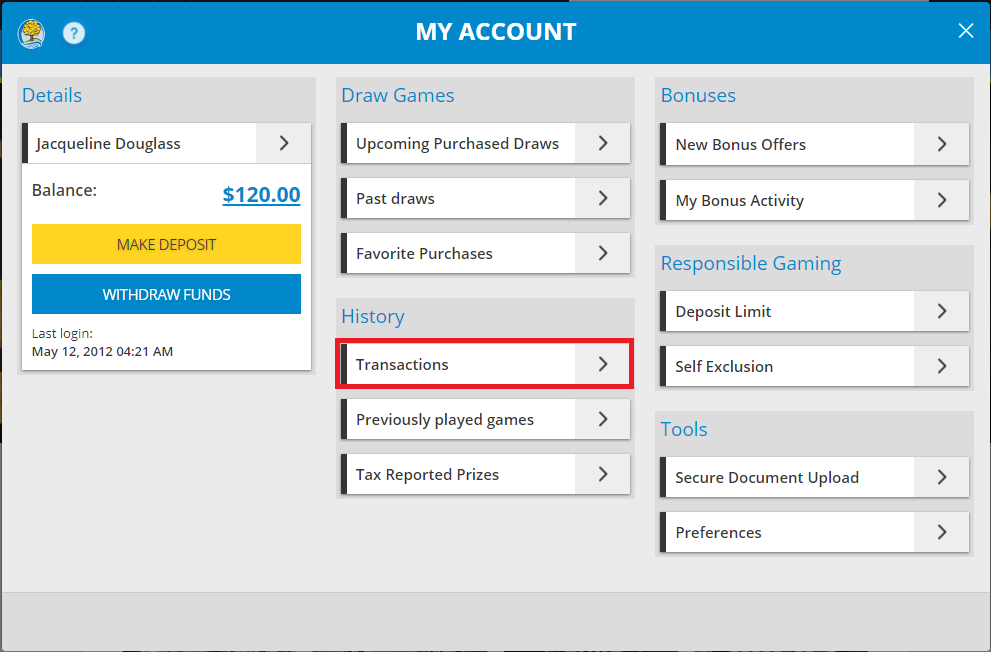
- Use filters to refine results, then select “SHOW”.
Was this article helpful?
That’s Great!
Thank you for your feedback
Sorry! We couldn't be helpful
Thank you for your feedback
Feedback sent
We appreciate your effort and will try to fix the article