Mobile Phone
- Sign In from the menu. To reach the menu, select the “ ” icon in the upper-left portion of your screen. Then, select “Sign In” from the mobile menu and enter your Michigan Lottery account credentials.
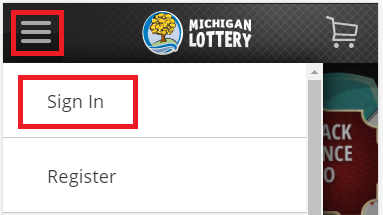
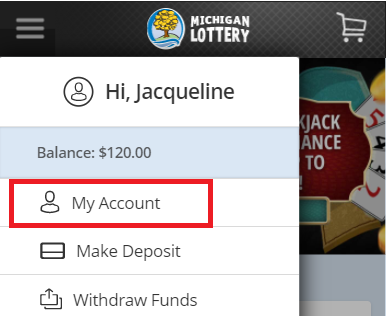
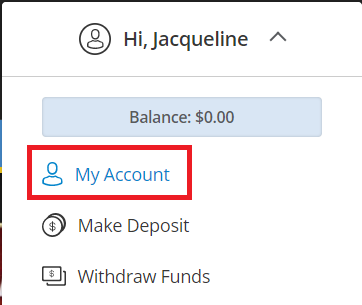
- Select “My Account” from the mobile menu.
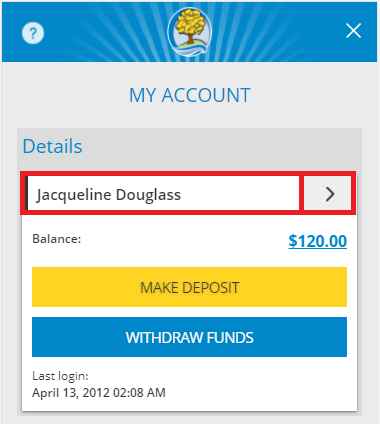
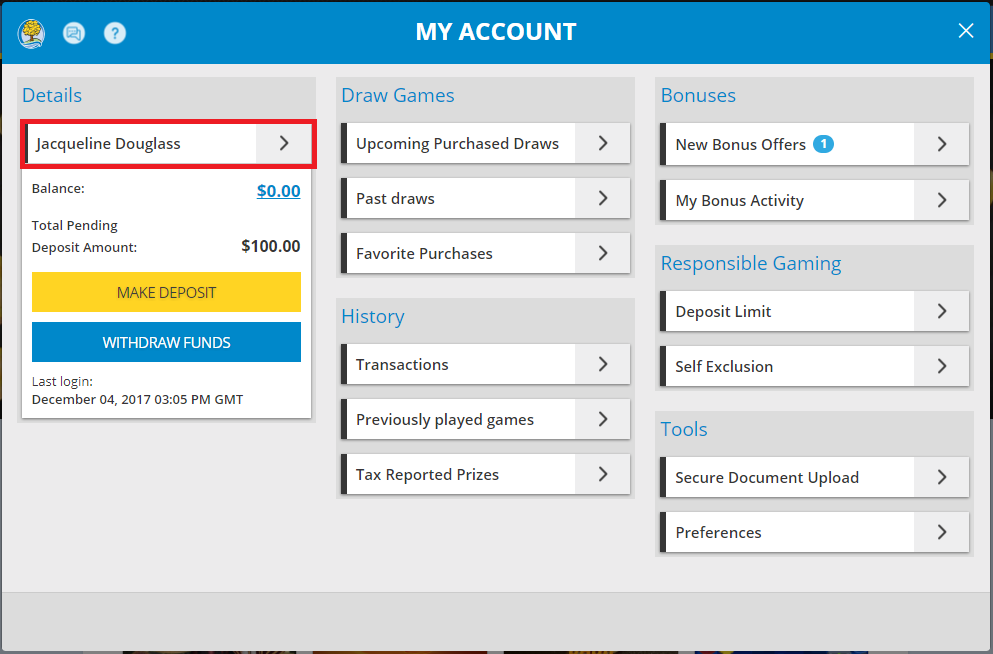
- Select your name, or the arrow to the right of your name, in order to view personal details.
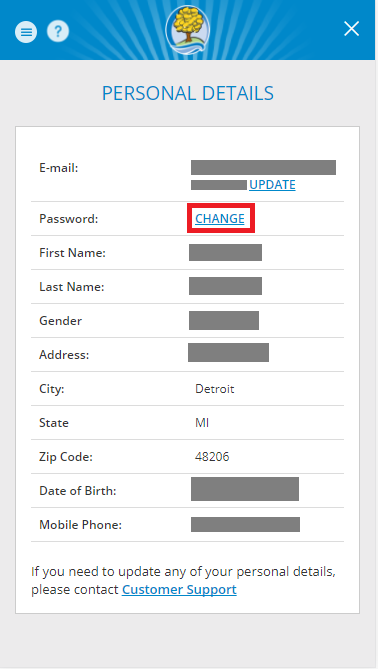
- Select “CHANGE” in the password field.
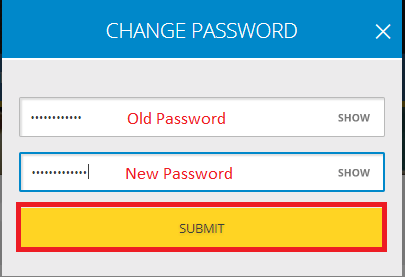
- Enter your current password and then enter a new password to change your account password. Select “SUBMIT” to confirm the changes (Note: You are able to select “SHOW” to view the old password and the new password.) Passwords must have 8-16 characters and contain at least 2 of the following: Uppercase (A-Z), Lowercase (a-z), Numbers (0-9), Symbols ( + * . @ ! # $ - _ , % / [ ] ~ ).
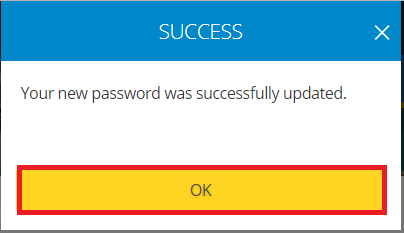
- Select “OK” on the Success confirmation screen.
Desktop Computer
- Sign In and select your name to open the Account Menu.

- Select “My Account” from the menu.
- Select your name on the My Account screen.
- Select “CHANGE” in the password field.
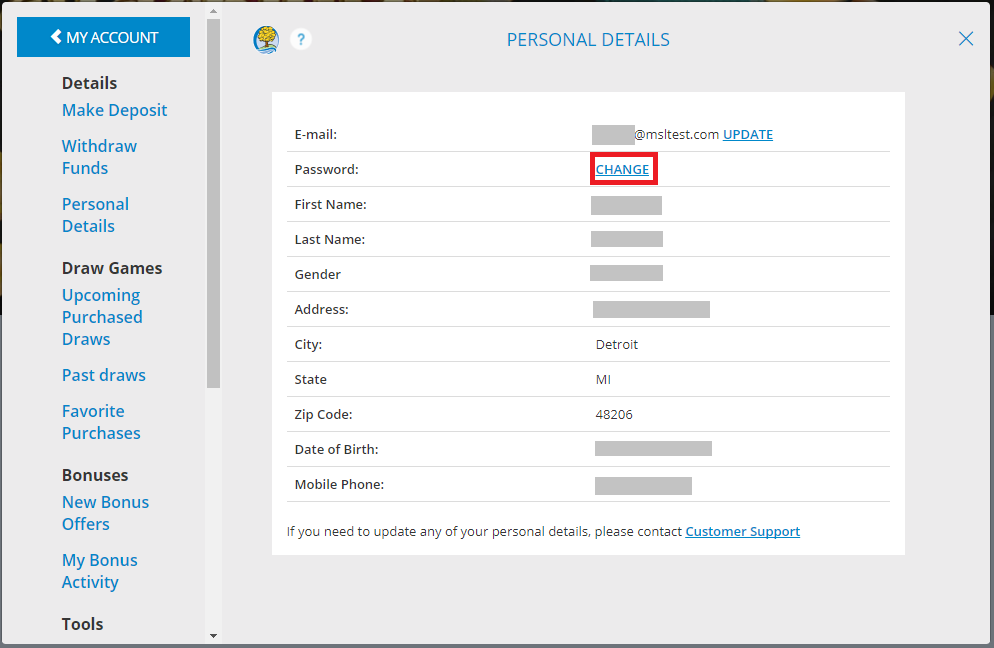
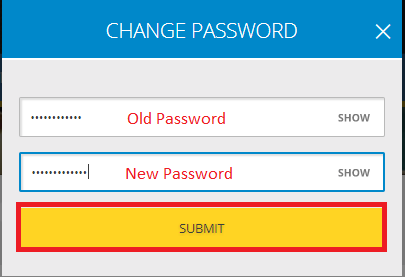
- Enter your current password and then enter a new password to change your account password. Select “SUBMIT” to confirm the changes. (NOTE: You are able to select “SHOW” to view the old password and the new password.) Passwords must have 8-16 characters and contain at least 2 of the following: Uppercase (A-Z), Lowercase (a-z), Numbers (0-9), Symbols ( + * . @ ! # $ - _ , % / [ ] ~ ).
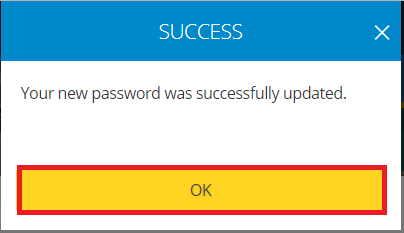
- Select “OK” on the Success confirmation screen.
Was this article helpful?
That’s Great!
Thank you for your feedback
Sorry! We couldn't be helpful
Thank you for your feedback
Feedback sent
We appreciate your effort and will try to fix the article